Shared limits
How to limit YouTube time across your child’s devices
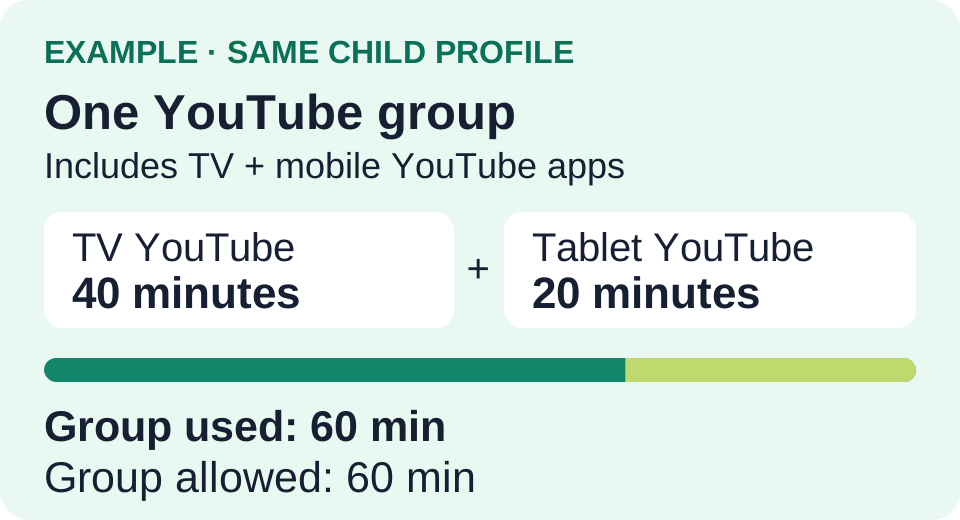
Create a YouTube group containing its TV and mobile apps, then set a daily group allowance. With the same synced child profile active, forty minutes on TV plus twenty on a tablet uses sixty minutes.
Why a group is needed
TV and mobile YouTube have different Android app identifiers. A per-app rule does not automatically combine them. A Group includes both variants explicitly. An overall Device budget also counts other apps and is a different control.
Set the shared allowance
- Create the group on mobile.
In the active child profile, open Groups → +, name it YouTube, and create it. Open Add App, select installed YouTube, and save. Set Screen Time Limit to the daily allowance.
- Load that profile on the TV.
On mobile, use Settings → tvusage remote → Backup Current → Backup. On the linked TV, choose the same profile and Activate, or Restore if already active. Wait for it to load.
- Add TV YouTube to the existing group.
On TV, open the synced group → Apps, select TV YouTube, and Save. The TV picker retains the mobile member. Save the profile to Remote and restore it on mobile.
Preserve membership and check sync
Avoid re-saving group membership from the mobile picker: it can remove members not installed on that device. Make membership changes on TV instead. Keep devices online; shared totals can lag while usage syncs. If restriction fails, check the group rule and selected profile.