tvusage features

Screen-time controls for your family

Choose limits, app rules and breaks for Android TV, phones and tablets.

Get it on Google Play

Choose your controls

Time and breaks

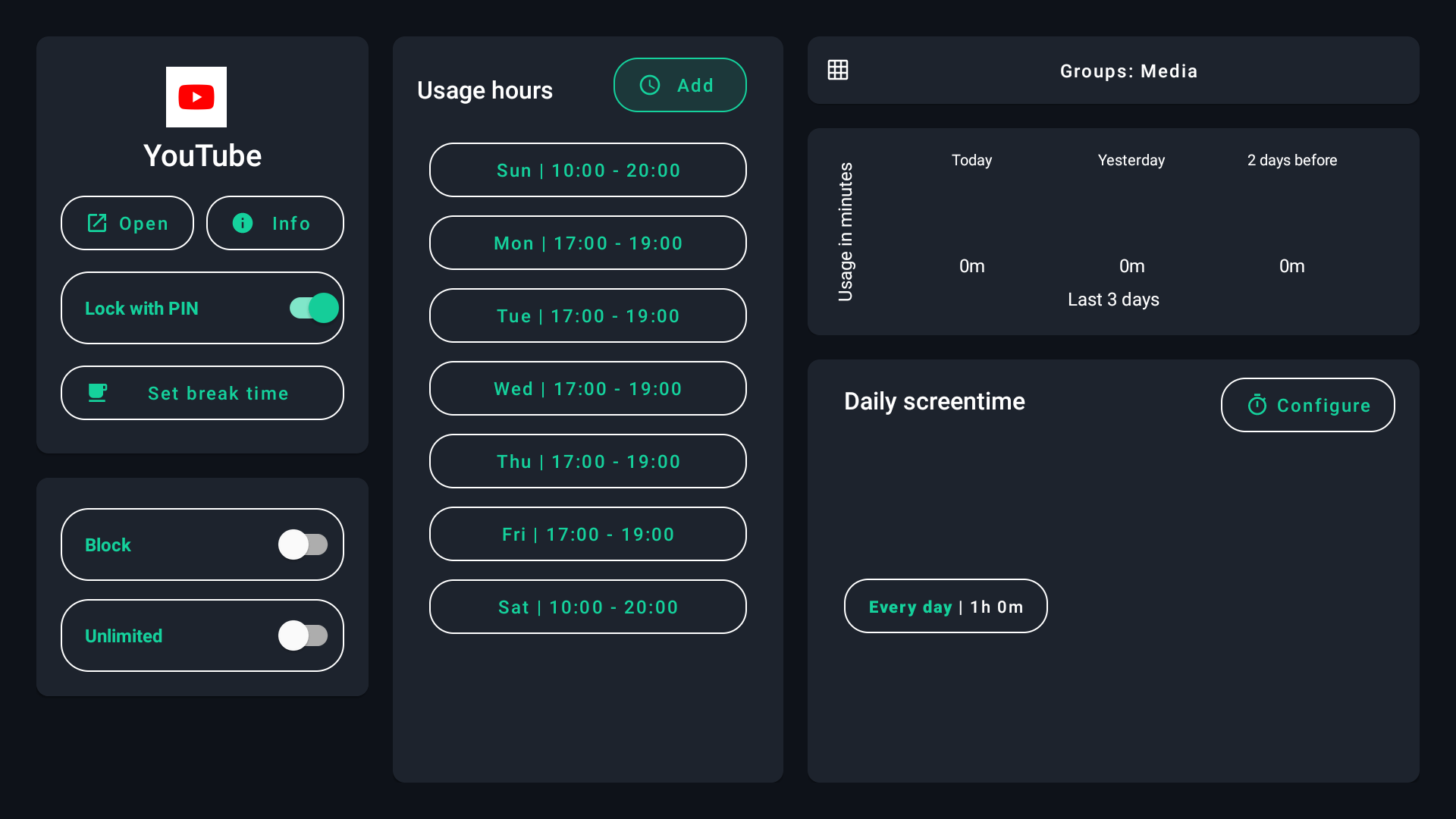
Screen-time & usage hours
Set daily allowances and allowed hours for apps or the device.
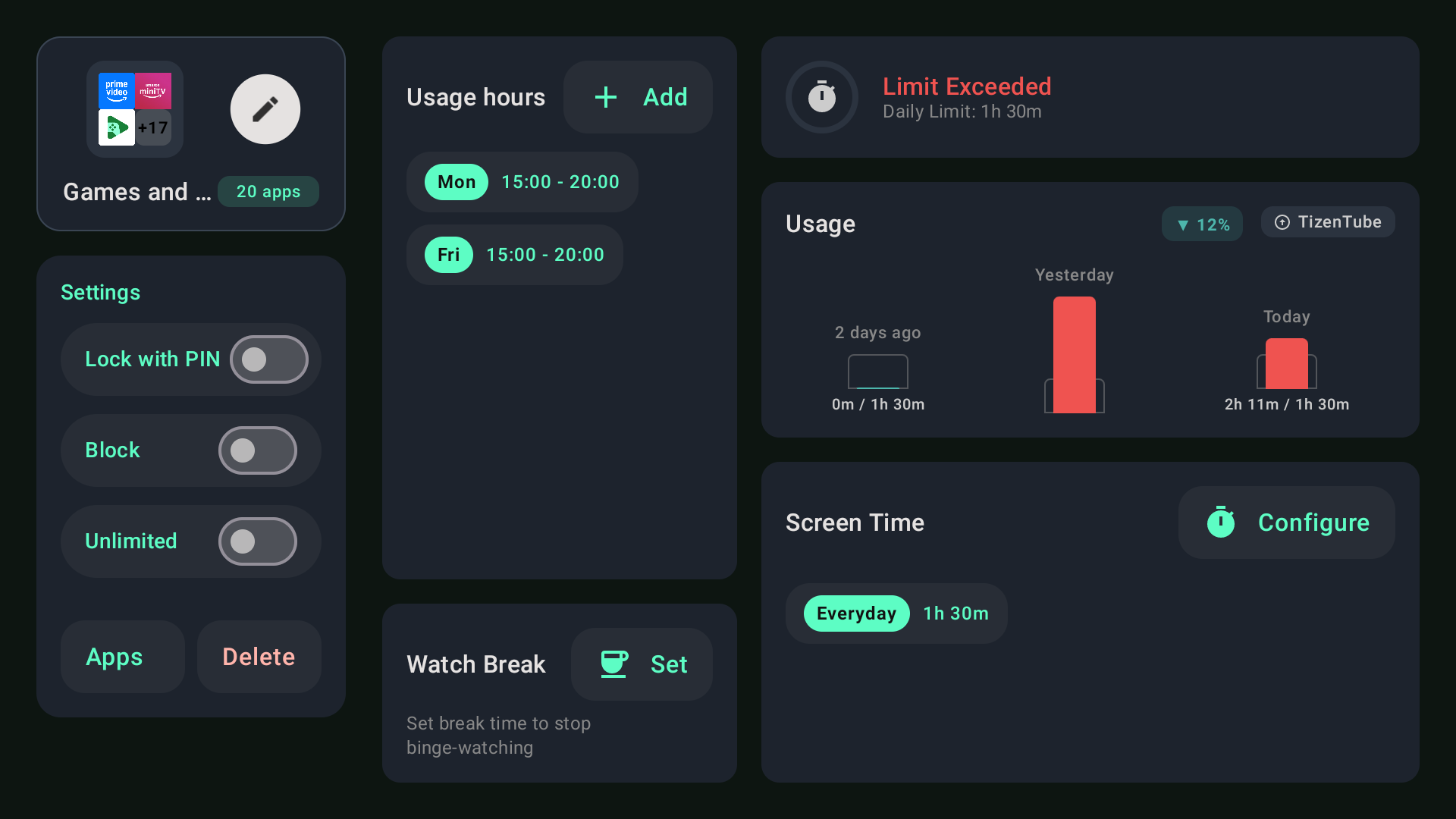
App groups
Share one allowance or schedule across related apps.
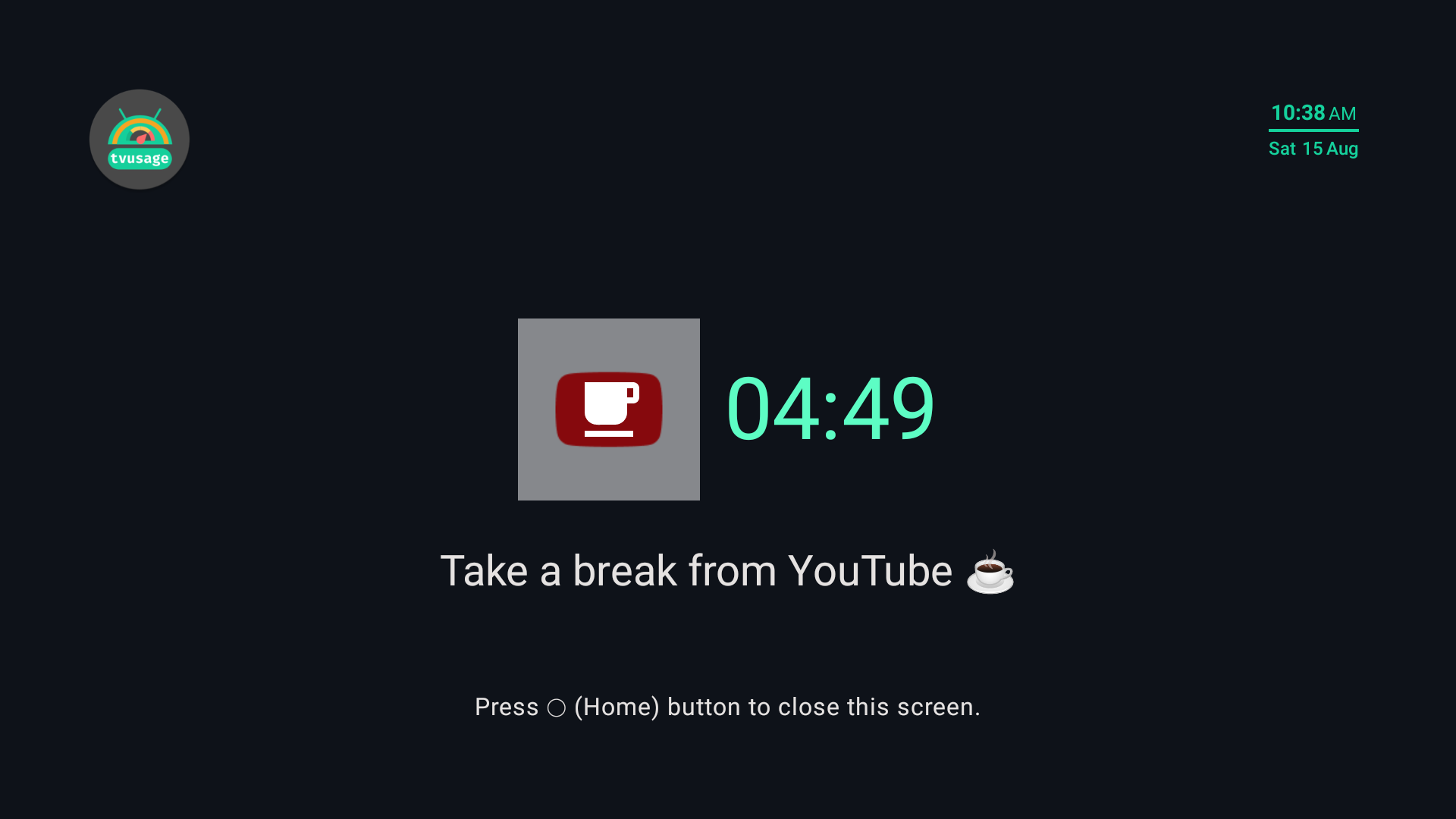
Watch breaks
Schedule pauses during long sessions.

Apps and access

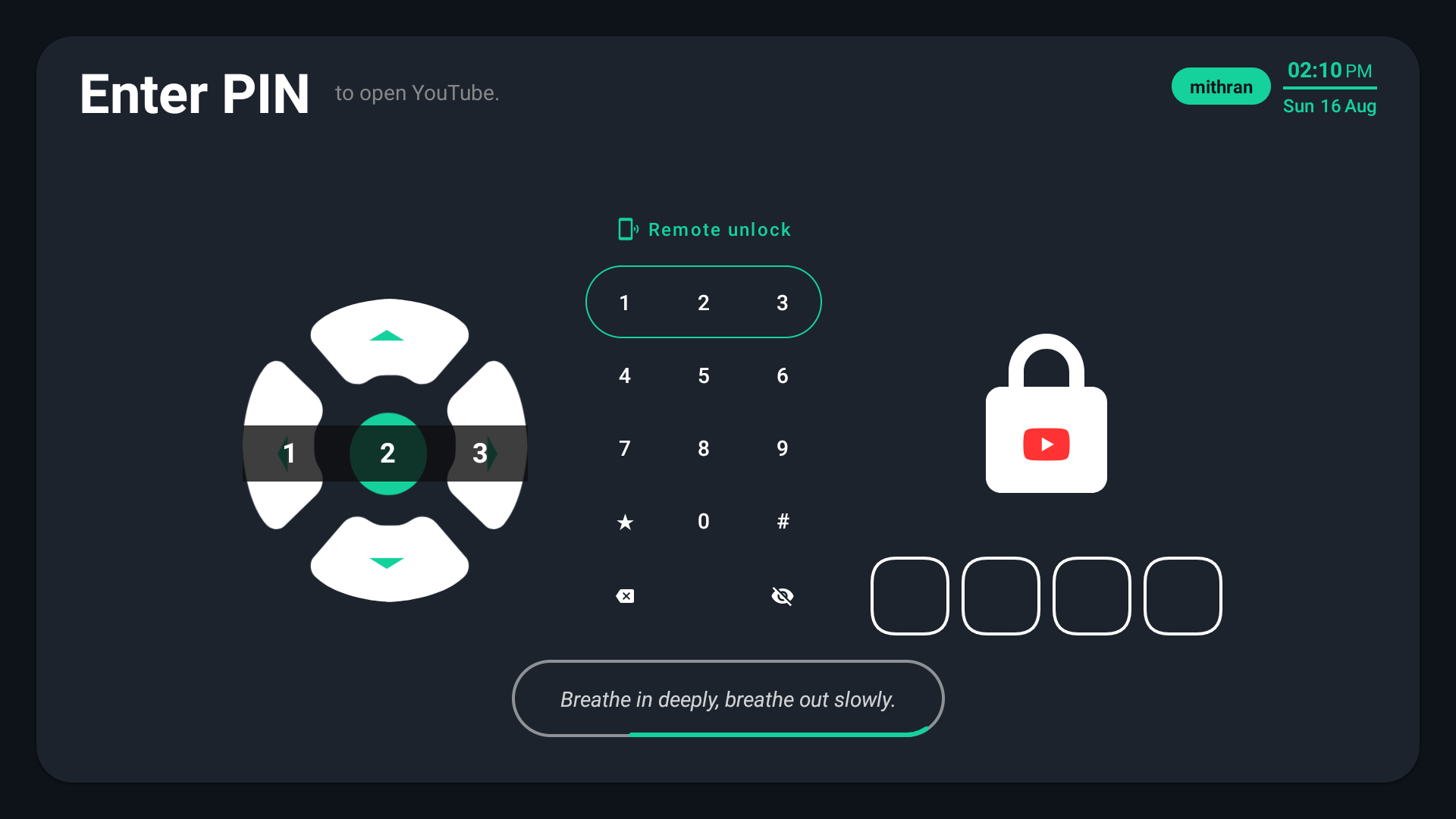
PIN app & device lock
Protect one app or the whole device with a parent PIN.
Unlimited-use apps
Keep selected learning or communication apps available.
Complete blocking
Block an app entirely.
Install & uninstall protection
Protect against removing tvusage or installing workarounds.

Profiles and usage

Synced profiles
Keep each child’s rules and usage across linked devices.
Daily & weekly insights
Review screen-on time and per-app usage.

Remote and messages

Optional remote management
Review activity, adjust rules and respond to requests from your phone or browser.
Parent messages
Explain a lock or a declined extra-time request on the child’s lock screen.

Multiple devices and Remote profile editing require Pro. A parent activates the right profile on shared devices. Keep linked devices online; synced totals can lag.

Compare plan access

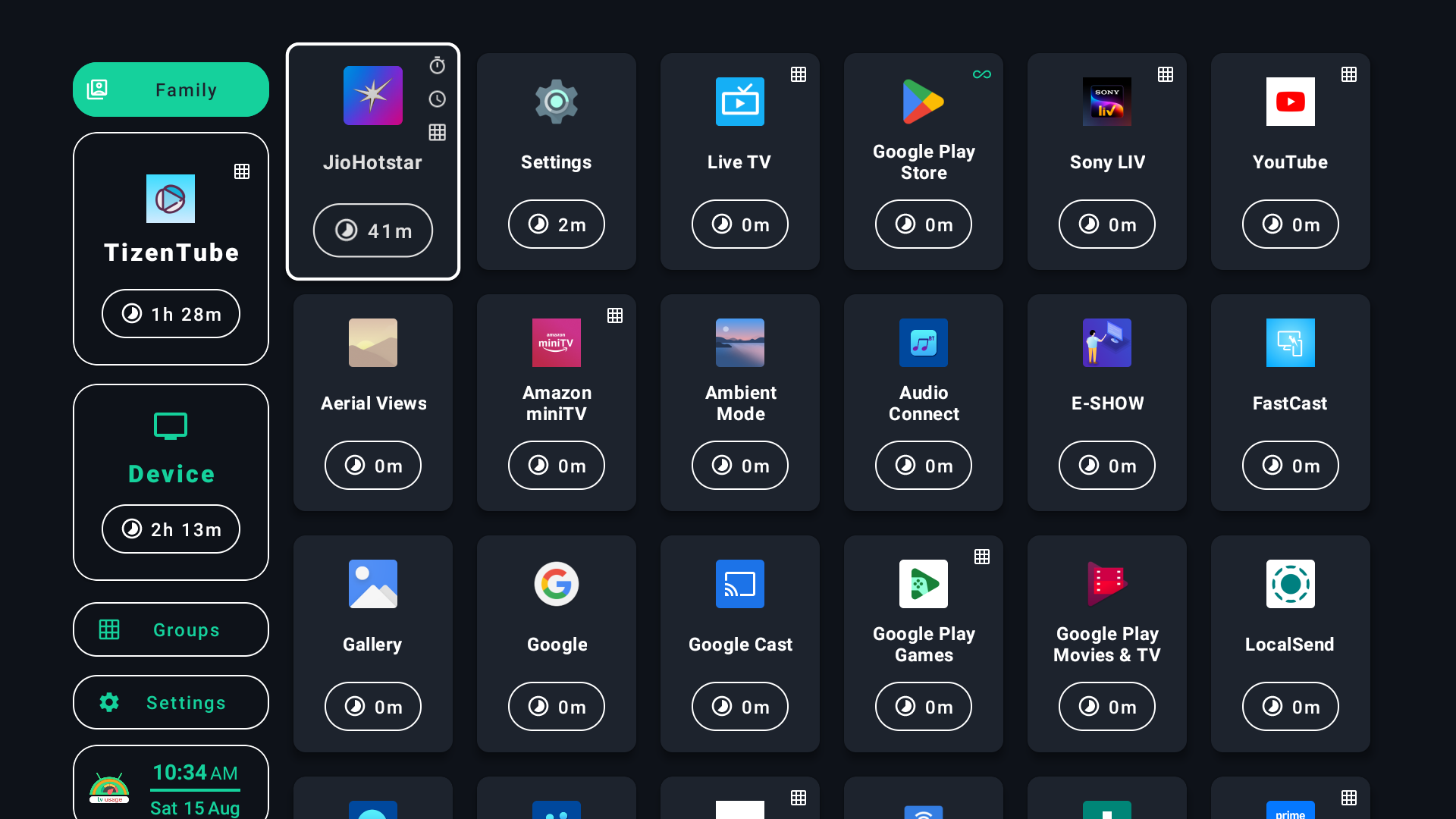
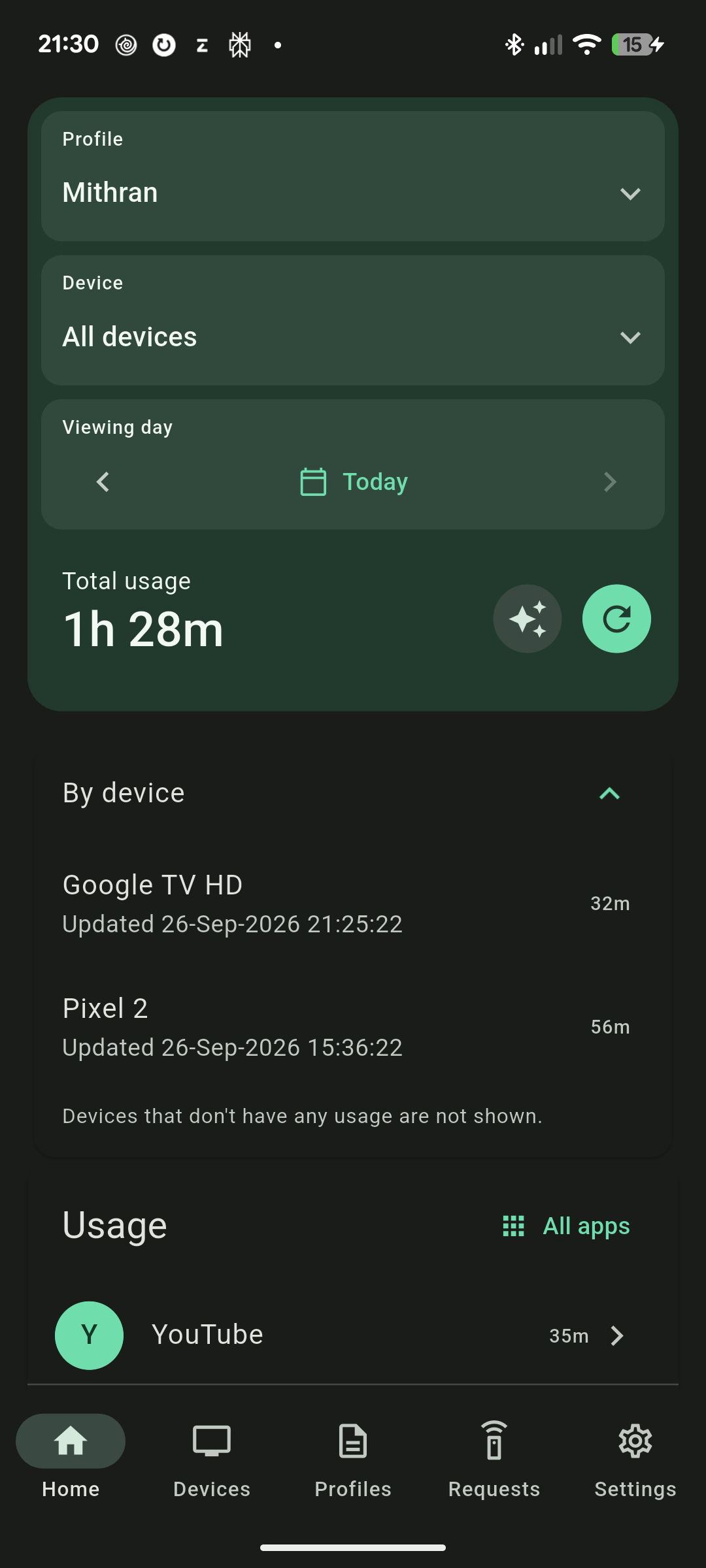
Review daily and weekly usage

Find the apps using the most time.

tvusage dashboard showing app and device usage totals

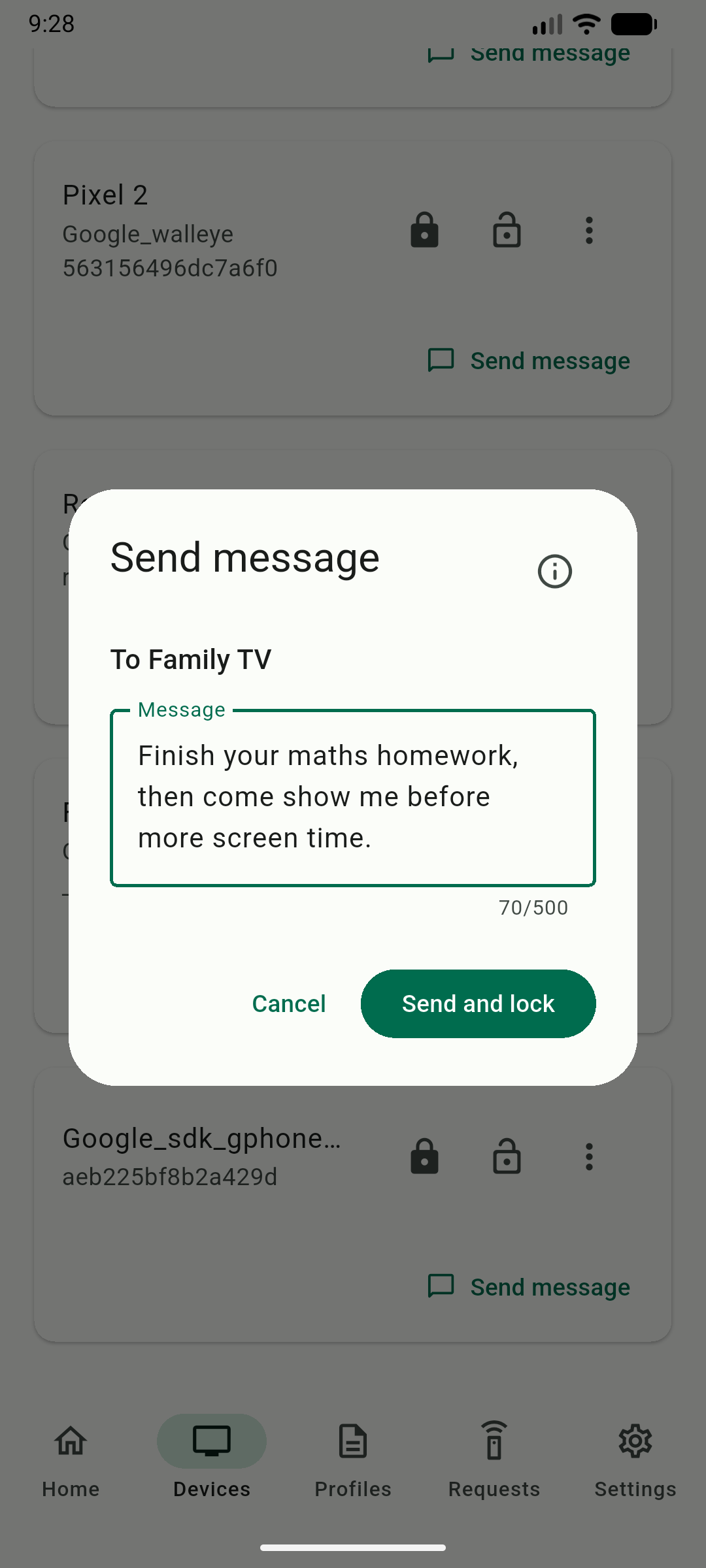
Send a message and lock

Open Send message on a linked device in tvusage Remote.

tvusage Remote Send message composer containing a homework message and a Send and lock button.
Parent phone: write your message, then Send and lock. View full-size image
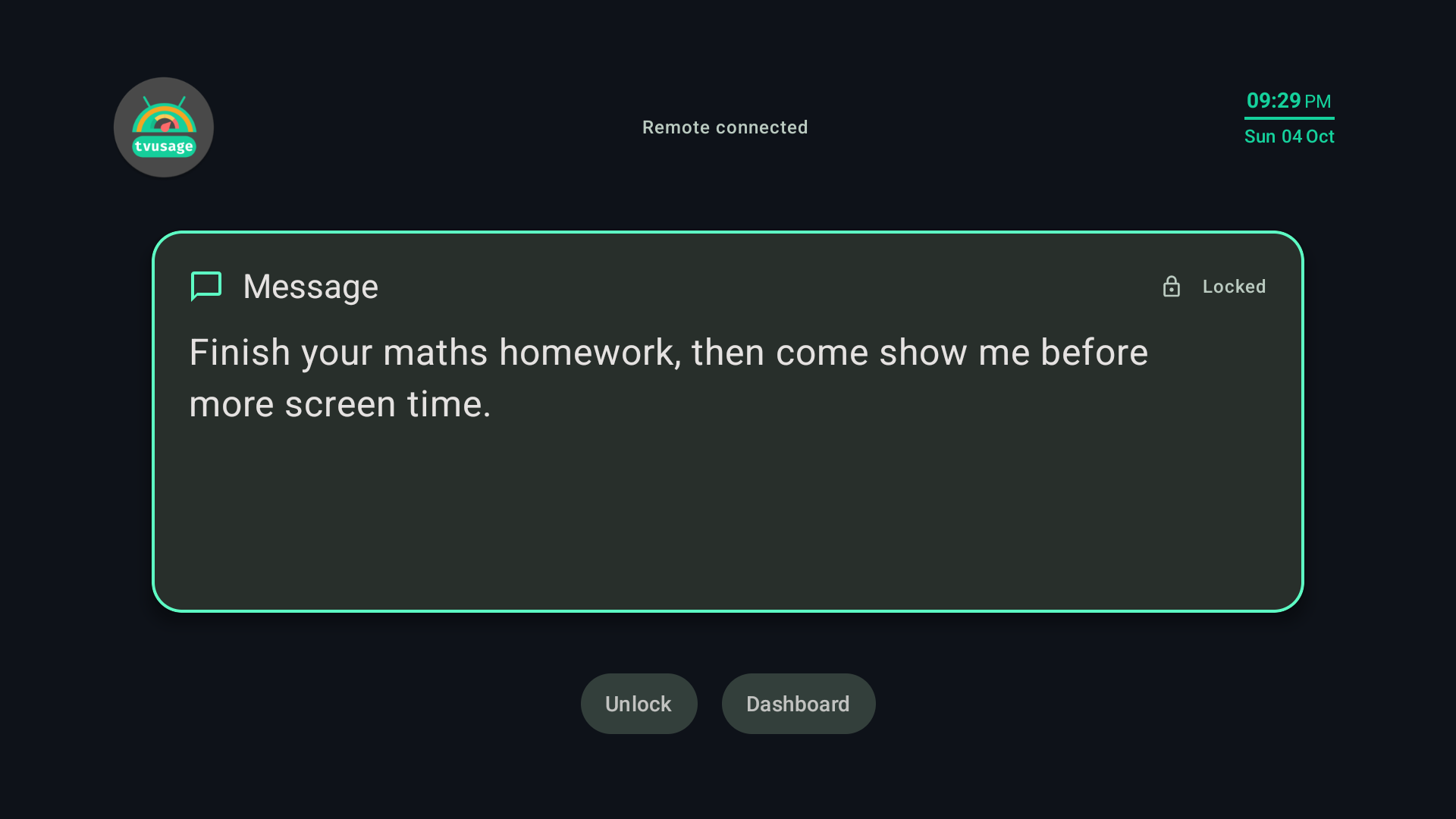
tvusage TV lock screen displaying: Finish your maths homework, then come show me before more screen time.
Child TV: the homework message on the lock screen. View full-size image

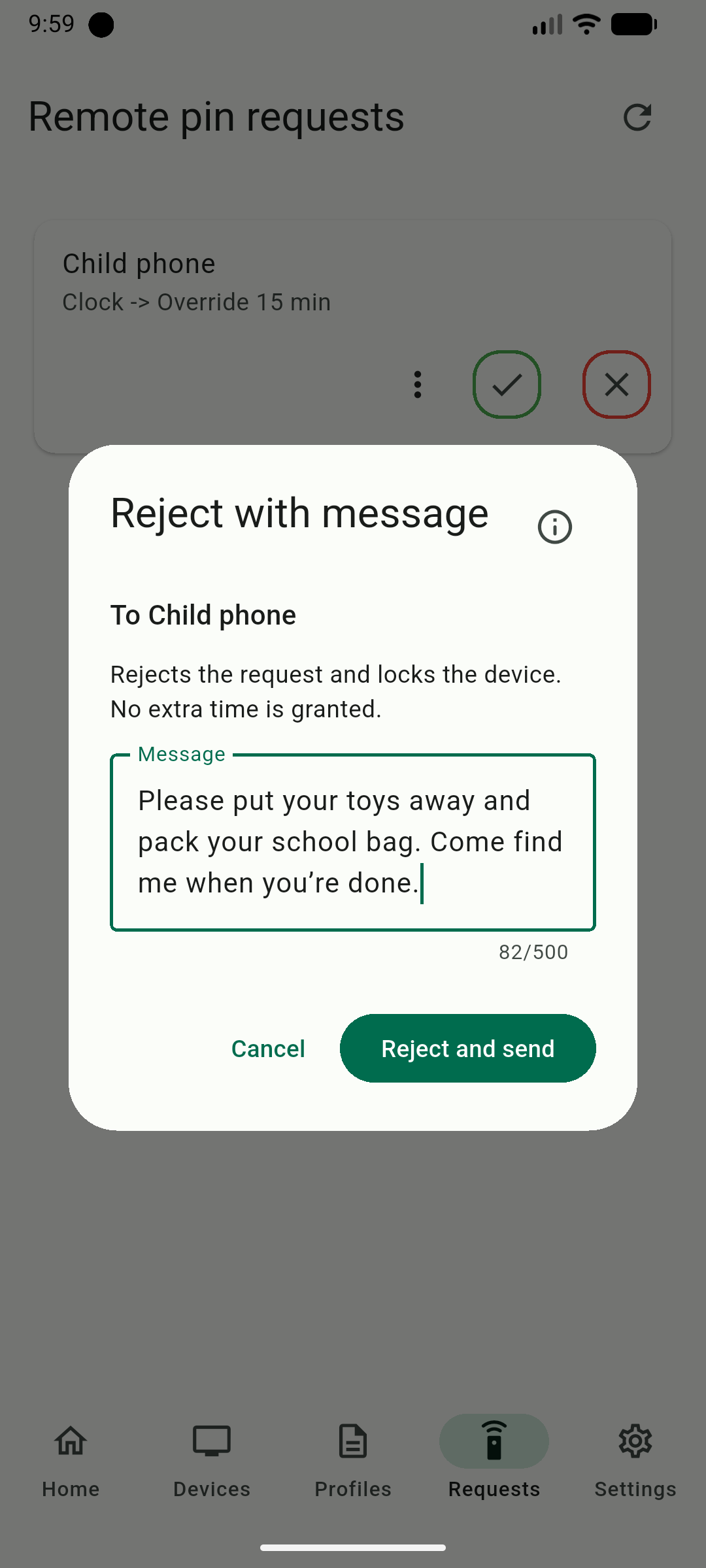
Explain a declined request

For an eligible pending extra-time or session request, the current restriction stays in place.

tvusage Remote Reject with message dialog containing a chore message and a Reject and send button.
Parent phone: Request actions → Reject with message → write your explanation → Reject and send. View full-size image
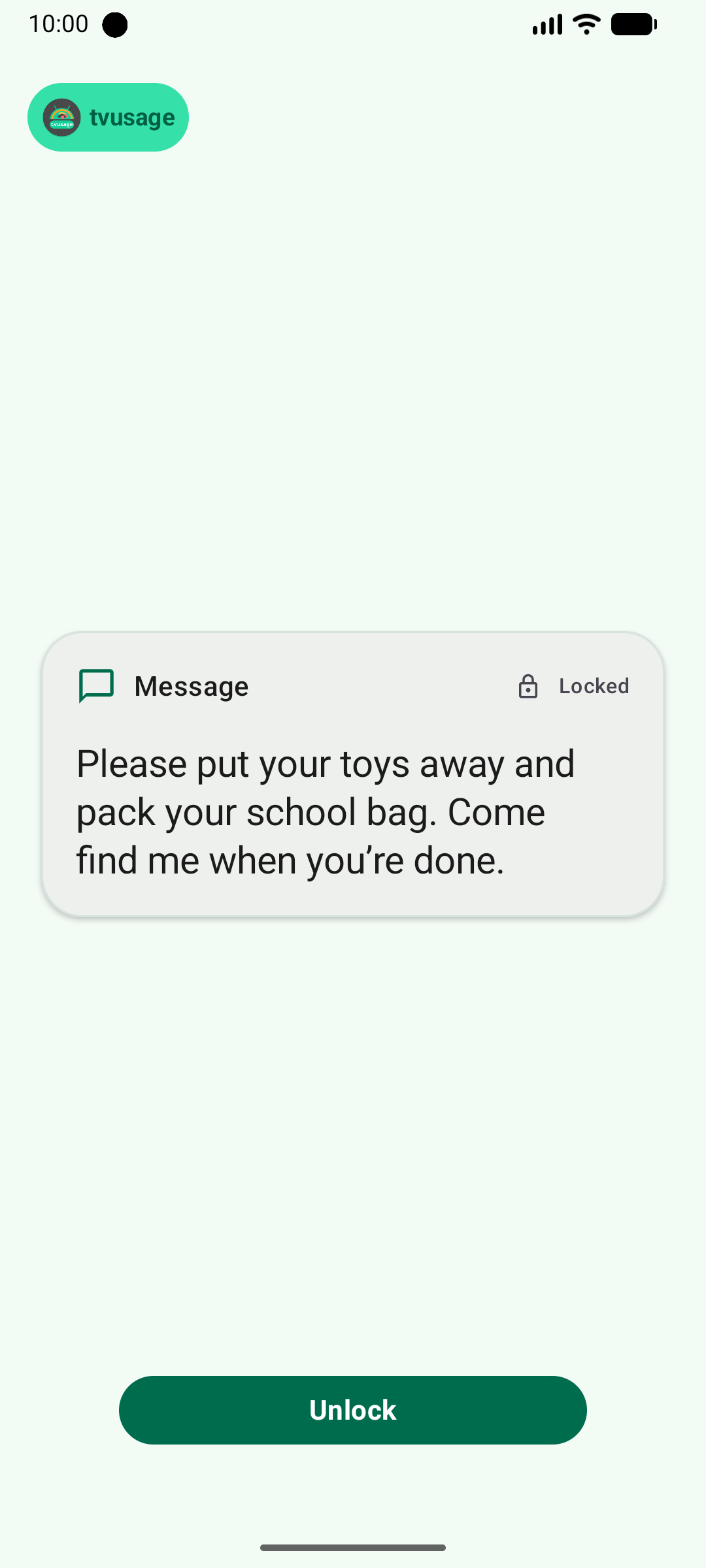
tvusage mobile lock screen displaying: Please put your toys away and pack your school bag. Come find me when you’re done.
Child phone: the chore message after the request is rejected. View full-size image

Parents check completion and unlock manually. No task tracking or automatic rewards. Requires updated, connected child devices; check that the message arrived.

Use messages for family routines

Try tvusage on your family’s devices.

Get tvusage on Google Play