Getting started
How to set screen-time limits on Android TV and Google TV
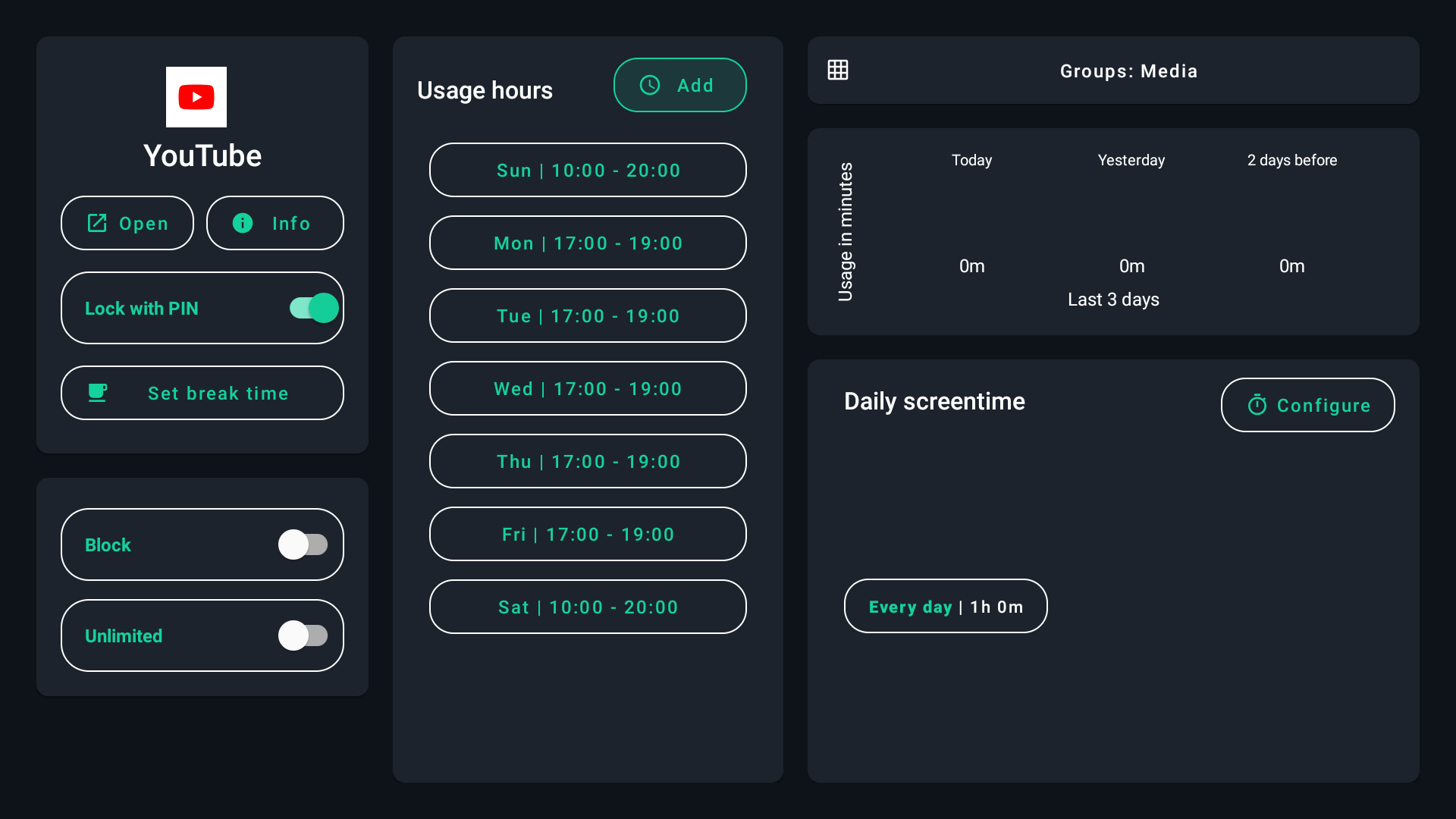
Set Daily screentime for an app’s daily allowance and Usage hours for when it can open. Start with one app and check enforcement on your TV before adding more rules.
Set the rule
- Complete setup.
Follow consent and permission screens and set a private parent PIN. If your TV needs extra setup, follow the manufacturer or permissions guide before relying on enforcement.
- Choose a daily allowance.
Select the app, find Daily screentime, and choose Configure. Set an allowance, such as one hour. This measures total time during the day, rather than time available every time the app opens.
- Choose allowed hours.
In Usage hours, add allowed periods for the relevant days. An app can be unavailable outside those hours even when daily time remains. Use a schedule that matches your family’s routine.
Test before handing over the remote
Open the app during an allowed period. Confirm usage increases and the configured limit or schedule restricts it as expected. You can temporarily test with a short allowance, then restore the intended rule.
A PIN lock protects access separately. Apps marked Unlimited are excluded from the overall Device allowance; review that setting if an app remains available unexpectedly.
If enforcement fails, check permissions, the active profile, and device-specific setup. Send support the TV model, Android version, tvusage version, and the rule you tested. Use the family setup guide before adding more children or devices.